Free Invoice Generator
Create a clean service business invoice online with taxable line items, discount, amount paid/deposit credited, and balance due.
Before you start: the form opens with two example lines so the document builds straight away — type over them or remove them with the × button. Choosing a trade replaces them with that trade’s typical lines. Clear All Fields, below the form, empties everything including notes and terms.
Loading interactive generator... Please ensure JavaScript is enabled in your browser to build your document.
How To Use This Free Invoice Generator
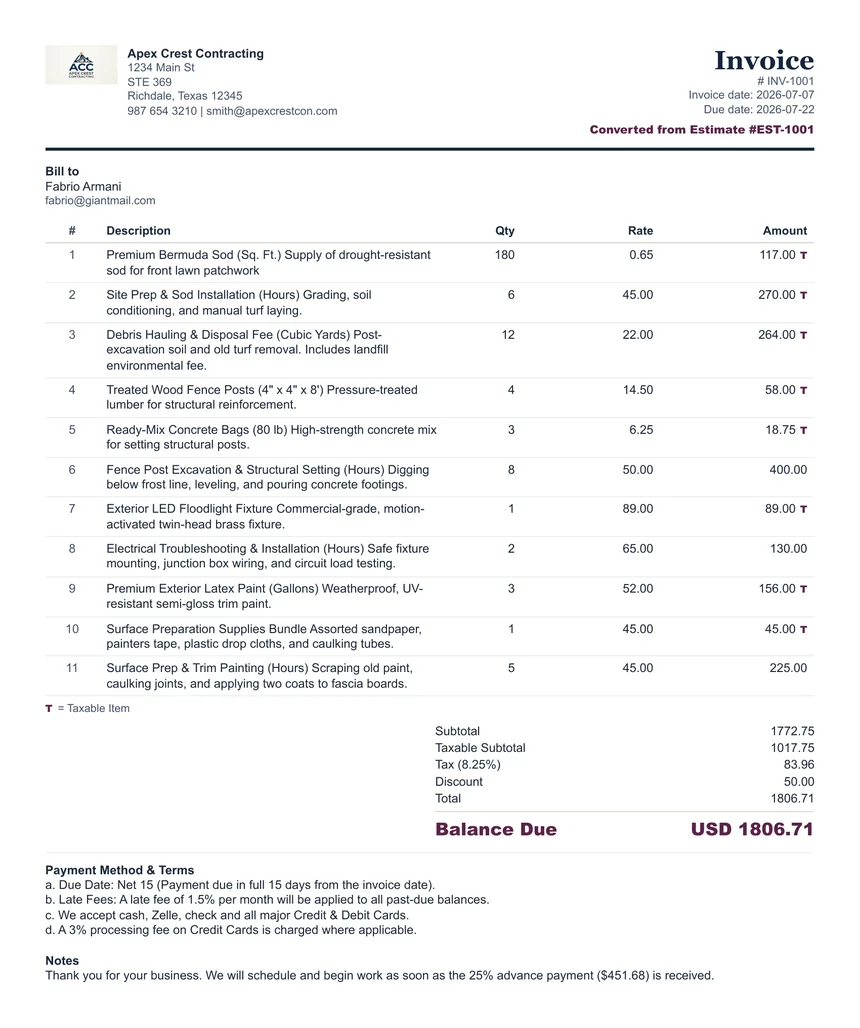
Use this invoice generator when payment needs to be requested, tracked, or documented. An invoice can be sent after work is completed, after an estimate is approved, before work begins to request an advance payment or deposit, or during a project for milestone billing. The tool is designed for freelancers, contractors, mobile service providers, home service businesses, event vendors, consultants, and other small service businesses that need line items, optional taxable-item marking, fixed discounts, deposit credits, and a clear balance due without an account system.
If you start from an estimate, confirm the invoice date before sending. The invoice date should reflect the invoice you are issuing, whether it is for an advance payment, progress payment, final balance, or completed work. Later receipts should use the actual payment date when payment is received or when the payment loop is closed.
The form runs in your browser. Your business details, customer details, line items, uploaded logo, notes, and payment terms are used only to build the live preview on your device. ClearPaperwork does not collect or store your invoice content.
When To Use It
Use an invoice after an estimate is approved, when requesting an advance deposit, for milestone billing, for a final balance, or after completed work.
Important Details
Include invoice number, invoice date, due date, service descriptions, quantities, rates, taxable line items where needed, fixed discount if used, Amount Paid / Deposit Credited, and Balance Due.
Taxable Line Items
Use the Taxable checkbox only for services or products that should receive the tax rate you enter. Taxable printed items are marked with a small T.
Amount Paid / Deposit Credited
Use this field only for money actually received or credit actually applied. If the credited amount is more than the invoice total, Balance Due displays as 0.00 and the extra amount appears separately as a Credit / Overpayment Balance.
Planning An Upfront Deposit
For a requested deposit that has not been paid yet, use the Advance Deposit Calculator and place that wording in the invoice terms instead of treating it as paid.
Before Sending
Check spelling, invoice date, due date, totals, payment method and terms, customer name, and balance due before printing or saving as PDF.
What A Clear Service Invoice Should Include
- Business name and contact details that the customer recognizes.
- Customer name or company name so the invoice is tied to the correct account.
- Unique invoice number, invoice date, and due date for tracking. If the invoice was created from an estimate, confirm that the invoice date was not accidentally left as the old estimate date.
- Specific line items instead of vague wording such as “work done.”
- Subtotal, tax on marked taxable items if applicable, fixed discount if applicable, Amount Paid / Deposit Credited, and final Balance Due. If the paid/credited amount is greater than the total, the invoice shows Balance Due as 0.00 and lists the extra amount as a Credit / Overpayment Balance.
- Payment Method & Terms written in plain language, such as Cash, Check, Bank Transfer, Zelle, Venmo, Card.
Invoice Generator Compared With A Word Or Excel Template
| What you need to do | Word or spreadsheet template | This generator |
|---|---|---|
| Total lines, subtotal, discount, tax, and balance | Your formulas, maintained by you | Calculated live, with taxable lines marked individually |
| Credit a deposit already received | Added by hand, and often mislabelled | A dedicated amount-paid field that reduces the balance due |
| Reuse an approved estimate | Save-as, then edit every reference | Converted in one step, in the browser |
| Issue a receipt once it is paid | A second template, retyped | Convert again — the details carry forward |
| Load typical line items for your trade | Copy from an old file and hope it was right | Seventeen trade presets, fully editable once loaded |
| Keep customer data off third-party servers | Depends where the file lives | Nothing leaves your browser |
None of this makes word processors or spreadsheets bad tools — they are excellent when you want total control over layout, or when a document has to be archived in an editable format. The difference is that a generator built for one job removes the arithmetic and the formatting from the task entirely.
What This Tool Does Not Do
- It does not send invoices, take payments, or chase them. For follow-up wording see the late payment reminder guide.
- It does not keep a customer list, an invoice register, or a payment history.
- It does not choose your tax rate or decide what is taxable — you supply the rate and mark the lines. The sales tax calculator cites the official source for each state base rate.
- It does not number invoices for you. A consistent scheme is worth setting up once — see how to number invoices.
- It is not accounting software and does not file anything with anyone.
Walkthrough, comparison, and limitations last reviewed by Khurram Naeem Jaswal. Tested in current Chrome, Edge, Firefox, and Safari on desktop, and at 390px on mobile — see how we test. Something wrong? Report it.
Use the generator for the document, then open the related guide or calculator when you need help with wording, deposits, tax amounts, or late-payment follow-up.
FAQ
Can I use this invoice generator without signup?
Yes. The invoice generator runs in your browser and does not require an account.
Does ClearPaperwork store my invoice data?
No. The invoice details you enter are used locally in your browser to build the preview and print/PDF output.
Can I mark only some invoice line items as taxable?
Yes. Enter a tax rate and use the Taxable checkbox beside each line item that should receive tax.
Can I show a deposit or partial payment?
Yes. Enter money actually received or credit actually applied in the Amount Paid / Deposit Credited field. The invoice will show the remaining balance due, or a separate Credit / Overpayment Balance if the paid/credited amount is greater than the total.
Is this legal, tax, or accounting advice?
No. This is a practical document tool. You are responsible for checking rules that apply to your location, industry, and customer type.